Your team's papers,
in one place.

Tagged, discussed, and always in sync. Point it at a folder and your whole group gets the same papers, tags and notes.

Free and open source · Linux, macOS, Windows · Source on GitHub

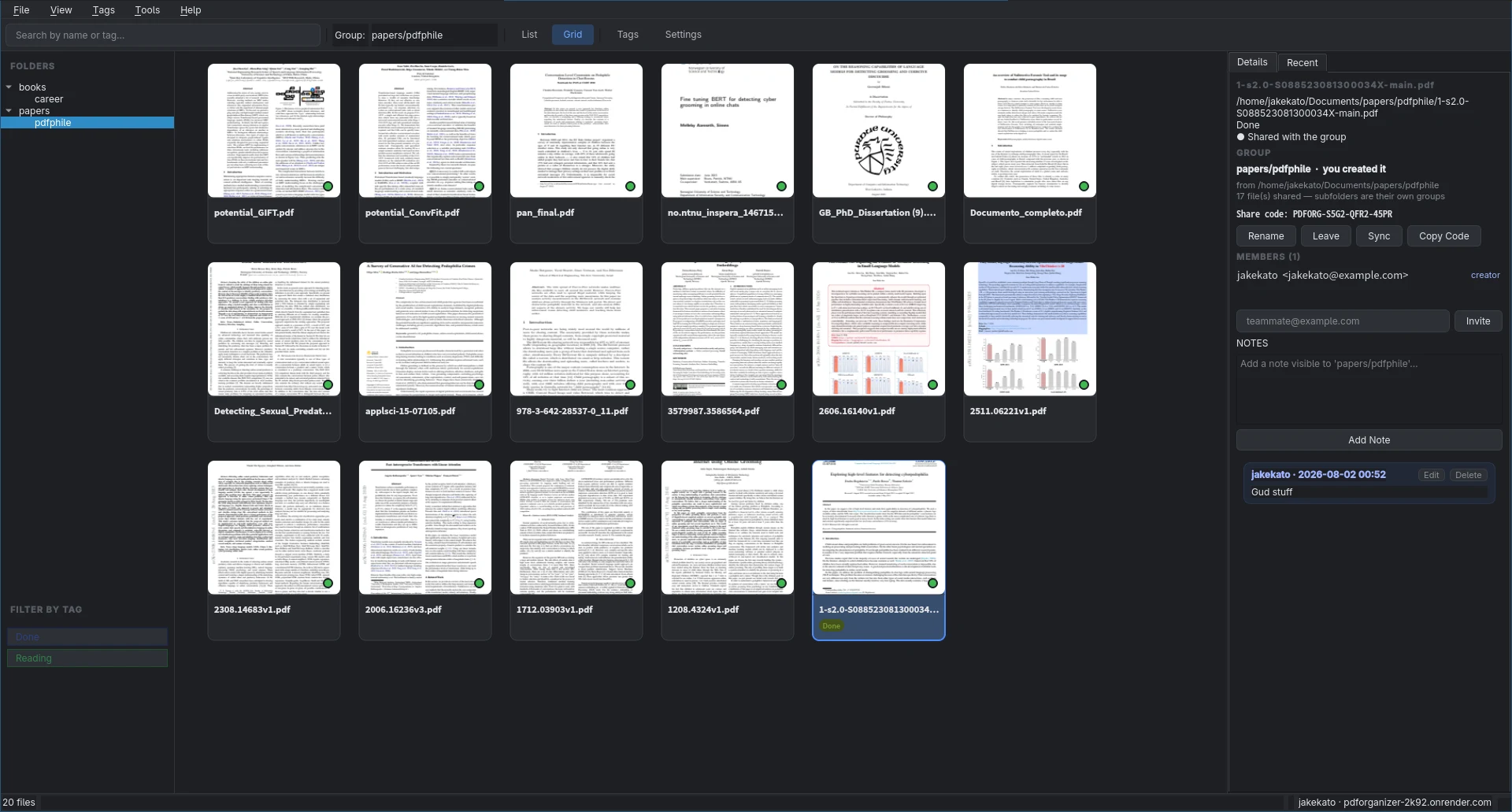
PDF Organizer in grid view: a folder tree on the left, a grid of paper thumbnails each with a green sync dot, and a details panel on the right showing the group, its share code, members and a note.

No more “which version of the paper are we on?”

Shared research runs on a shared drive, a group chat, and everyone's memory. Someone downloads a PDF, renames it final_v3_REAL.pdf, drops a thought in Slack, and three weeks later nobody can find either.

PDF Organizer puts the file, the tags and the conversation in the same window.

A folder is a shared space.

Add a directory and every folder inside it that holds a PDF becomes its own group, named after its path. Invite people and they get the same papers on their machine. There's no upload button to hunt for and no “did you get it?”.

A folder that only holds other folders isn't shared on its own; it just organises the groups inside it.

Tags and notes stay with the paper.

Leave a thought on a PDF and your teammates see it right beside the file, not buried in a chat log. Tags are shared with the group and filter the library in one click.

Tags never fight.
Two people adding the same tag at once just works.
Notes keep their author.
Only you can edit your own notes. If someone else changed a note while you were editing it, your save is refused and you're shown the text you would have overwritten, so nothing is lost.
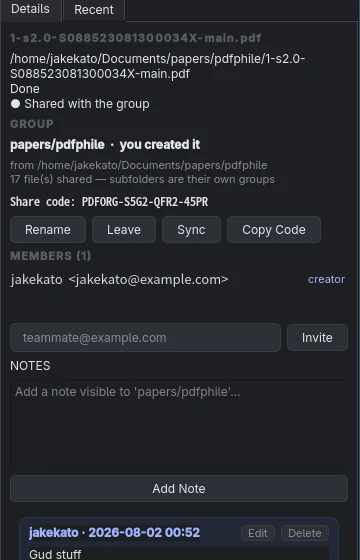
The details panel: the group papers/pdfphile, its share code, one member, and a note reading “Gud stuff” with Edit and Delete buttons.

Always know where you stand.

Every file carries a coloured dot. Hover it and the tooltip says whether the group has it, and whether you have edits waiting to go up. Syncs run in the background with a live progress bar, so you can keep tagging and keep reading.

Six paper thumbnails from the grid view, each with a green dot in its corner: every file is shared with the group.
  • SharedThe group has this file.
  • Only on this machineNot uploaded yet.
  • MovingUploading right now.

Offline? Tags and notes you write are queued and go out with the next sync.

Join with a code.

Share a short code with a teammate. They paste it in and their copy of the group fills in on its own. Only the group's creator can rename it or manage members, and anyone can leave.

Join a group

Joined papers/pdfphile · 17 files

Built to get out of the way.

Nothing blocks.

Tagging, notes and syncing are independent. You never have to sync before writing a tag, and a sync never freezes the window.

Nothing is silent.

Every action reports back as a one-line status message, not a pop-up you have to dismiss. Errors say what went wrong in plain English.

Nothing is a mystery.

Hover any file to see whether the group has it and whether your edits are still waiting to upload.

Nothing is lost.

Tags and notes written offline wait for the next sync. If a note changed under you, your edit is refused and handed back instead of overwriting anyone.

Find it in a keystroke.

Live search across names and tags. A sortable list view for scanning, and a grid of real page thumbnails for browsing.

  • CtrlOAdd a folder
  • Ctrl1List view
  • Ctrl2Grid view
  • EnterOpen the selected PDF

Your server, your papers.

Everything shared goes through a small FastAPI service backed by Postgres and Backblaze B2. The desktop app never holds a database password or a storage key; it only knows a server address and a sign-in token.

Working solo? Folders, tags, notes, thumbnails and search all work without an account. Sign in only when you want to share.

Backend setup guide
Terminal
# in PDFOrganizer/backend
uv sync
cp .env.example .env
# edit .env: JWT secret, B2 keys
uv run python init_db.py
uv run uvicorn app.main:app --port 8000

Get PDF Organizer.

Free and MIT-licensed. Prebuilt for every desktop.

The macOS build isn't notarized yet. The first time you open it, allow it under System Settings › Privacy & Security. Prefer to build it yourself? Build from source.